
H1 How Corta works
H2 What is Corta?
p1 Corta is a powerful work management platform designed to simplify work processes, track tasks, delegate responsibilities, and monitor progress. By centralizing all workflows in one place, Corta helps teams stay organized, focused on key tasks, and complete projects on time.
What can you do in Corta?
Corta helps owners and team members work more efficiently and effectively.
H3 All tasks in one place
Stay organized with a single view of all tasks. You can find them on the Dashboard, in Sprints and Active Sprints, and on the Project Board, so you always know what needs to be done and where to find it. Additionally, an advanced search and filtering system makes it easy to quickly locate specific tasks and focus on what matters most.
Lorem ipsum dolor sit amet, consectetur adipiscing elit, sed do eiusmod tempor incididunt ut labore et dolore magna aliqua.
Simple work coordination
Easily track progress and stay organized with task assignments and statuses. The assignee feature lets you see who is responsible for each task, while statuses help monitor progress at every stage.
You can also mention any user in task descriptions and comments, ensuring clear communication. The mentioned user will receive a notification, so they won’t miss important updates or messages.
Stay organized and on track with Corta
Corta helps you manage your work efficiently by keeping everything organized and ensuring you never miss important updates. With powerful tools for tracking tasks, deadlines, and activity, you can stay focused on what matters most.
Dashboard gives you a clear overview of all tasks assigned to you, making it easy to prioritize your workload and manage deadlines effectively.
My Activity Feed helps you stay on top of task updates that are relevant to you, tracking changes, comments, and progress in real-time .
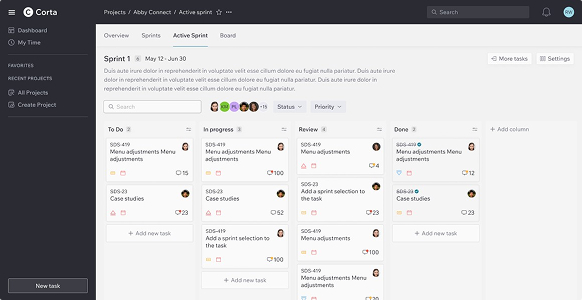
Navigating
In this guide, you’ll discover how to use Corta efficiently by exploring its interface. Learn how to manage your profile, access tasks and projects, and find everything you need to stay productive.
Interface
User menu
User Menu allows you to manage your personal information, update your details, and access the Settings section. You can also switch between workspaces and log out of your account. Customize your profile to suit your preferences and ensure your account is up to date.
Top bar
From the Top Bar, you can:
- Run a Search
Search helps you quickly find any task within your workspace or organization.
There are two ways to search for tasks: via the Search Bar and the Search Task Page.
With the Search Bar, simply enter a task name or key, and Search Task Page will open with a list of relevant results.
- Check Notifications
- Open the User Menu
- See Your Current Section